


Have you ever been busy chasing a deadline or really focused on work, only to suddenly find your Windows laptop or PC slowing down or even requiring a forced restart ? The reason is a classic one: the system is automatically running Windows Updates in the background . Incidents like this can really ruin your mood , especially when you need a device to work quickly and not be disturbed.
So, for those of you who frequently experience this annoying moment, don’t worry. To prevent it from happening again and disrupting your productivity, you can configure and temporarily disable the automatic update feature .
It’s really easy, just follow these steps:
1. Go to Windows Update Settings
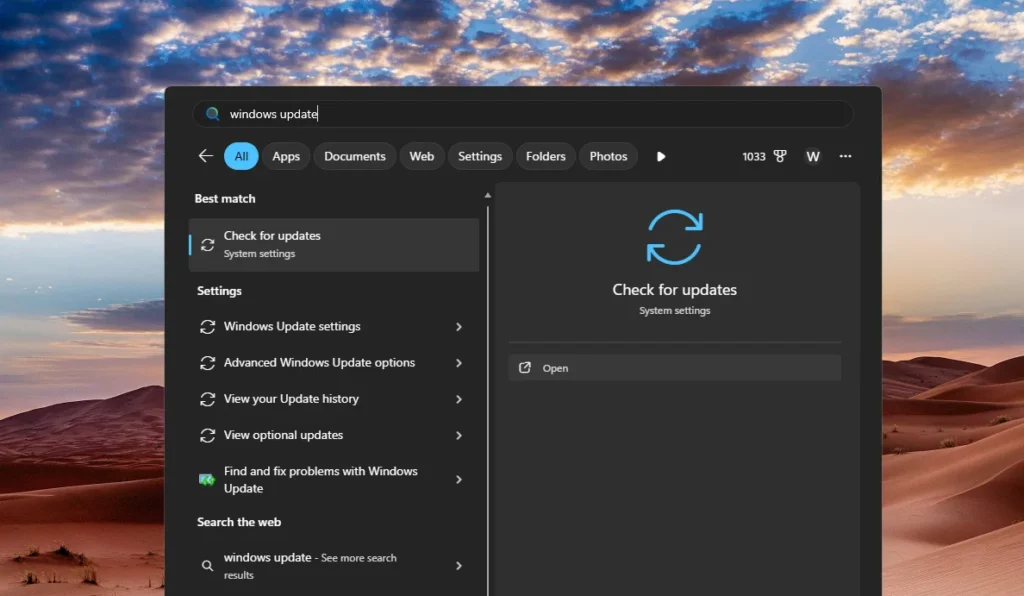
The first step you need to take is to open the Settings menu. To do this, click the Start button (the Windows logo at the bottom of the screen), type “Windows Update settings” in the search bar, and click Open.
2. Set the Time Pause in the “Pause Updates” Menu
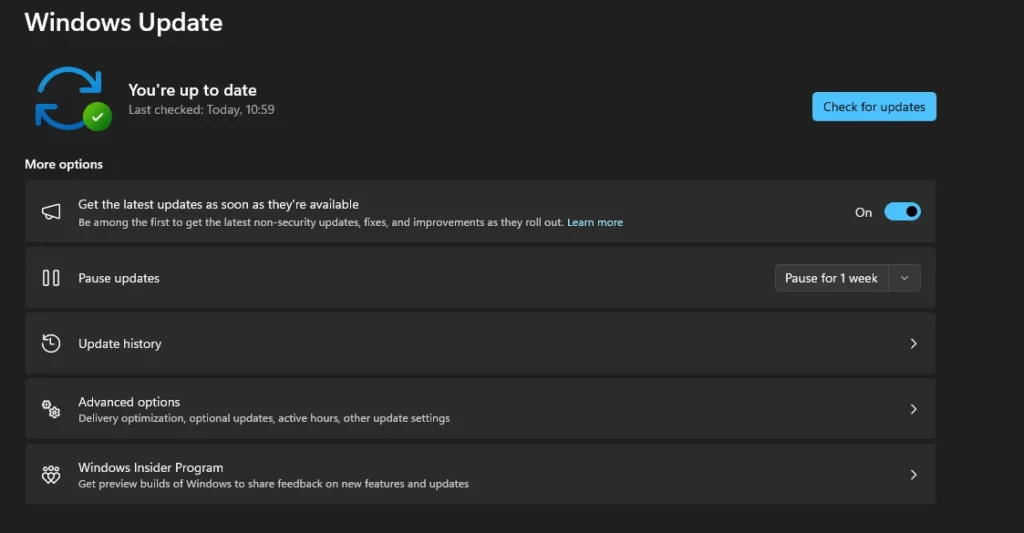
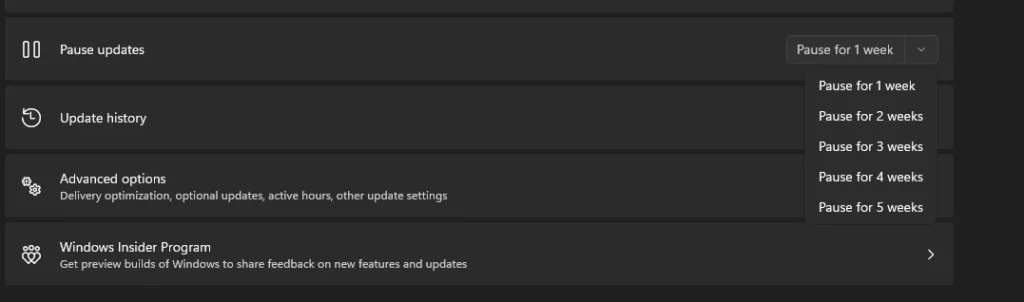
Once the settings window opens, take a look at the options on the screen. There, you’ll find a menu called “Pause updates .” This menu allows you to delay automatic system updates.
Simply click on the desired time. The great thing is, Windows 11 gives you the freedom to choose a fairly long delay period, from 1 week to a maximum of 5 weeks . Just choose the duration that best fits your busy schedule.
Vital Records!
One thing to remember is that delaying or pausing updates is n’t permanent . Why? Because routine Windows updates are crucial. These updates patch security vulnerabilities and protect your computer system from various malware and virus threats.
So, use this pause feature wisely. Only do it when you’re truly busy and don’t want to be disturbed by the sometimes lengthy Windows installation process. Once you’re done with your work, it’s best to resume the update to keep your computer secure and performing at its best!